Helping an older family member get started with a wearable
Edited edition: . The original receipt and first-publication dates are unknown.
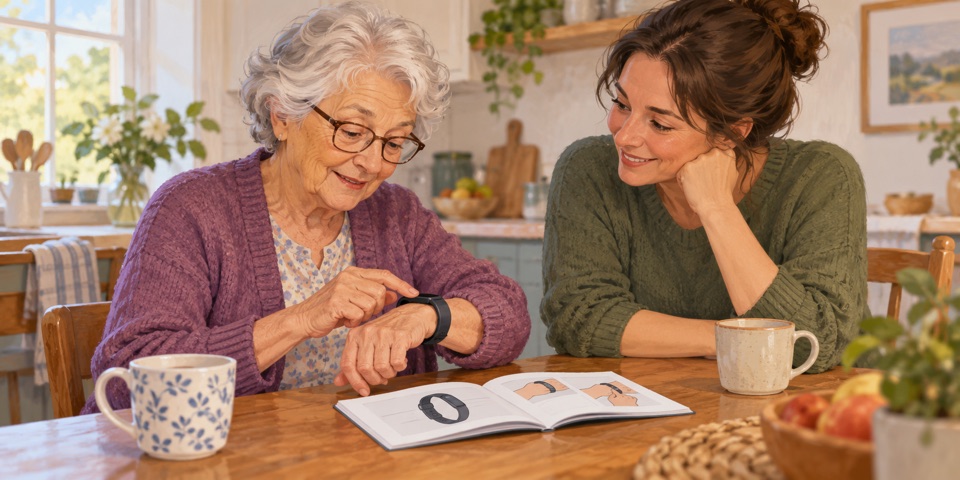
Image description: Illustration of an older adult operating a wrist band beside a family member and an open instruction booklet.
A new watch or fitness tracker comes with a lot to learn: charging, wearing it comfortably, finding the right screen and connecting an app. If you are helping an older family member get started, work at their pace and let them decide which features are useful.
Start with one task they care about. That might be checking a step count, seeing a message or understanding an available help button. Patience and clear explanations matter more than showing every feature on day one.
Step 1: Choose the device together
Ask what your family member wants from a wearable and whether they want one at all. A tracker that suits your routine may not suit theirs.
Consider:
- Text and numbers they can read comfortably
- Buttons or touch controls they can operate
- Alerts they can hear or feel
- A charging method they can manage
- Battery life that fits a practical charging routine
- Any requested calling or emergency features
A basic step counter may be enough for someone interested in walks. Someone who wants calls or messages will have different requirements. Check the exact model's phone compatibility, connection needs, setup instructions and recurring charges before buying. An SOS or fall-detection feature name alone does not tell you when it will work or whom it contacts.
Research shows varied experiences. In a qualitative study of 21 older adults in Sweden, participants wore a thigh-mounted fall-risk screening sensor for one week. Some found it easy to wear; others reported problems with the adhesive, skin irritation, sleep or losing the sensor. They also wanted to understand the information collected. This was a research sensor, not a retail smartwatch or a test of whether a watch prevents falls.
Let your family member handle a device before choosing it when that is possible. Ask whether it feels comfortable and whether they can read the display without your help. For background on what the measurements mean, our wearable sensor guide explains how signals become estimates.
Step 2: Set it up together
Unbox the device together and show what each part does. Follow the manufacturer's instructions for the first charge, pairing and fit. Let your family member try the steps themselves, with help when they want it.
Then adjust the available settings:
- Text size and brightness
- Alert volume or vibration
- Which notifications appear
- App and account permissions
Try an ordinary notification or the manufacturer's sound preview to find a comfortable alert. A louder notification setting does not establish how every emergency alert behaves. Settings and menus can differ between software versions; use the instructions for the device in front of you.
If there is an emergency function, read its instructions before touching the controls. Agree on the intended contacts and explain what happens after an alert, including any phone or network requirements. Learn the cancellation instructions without starting a live call. Apple's Emergency SOS instructions, for example, explain that holding a button can start a countdown and that a screen control can call immediately.
Use a demonstration only when the manufacturer provides one for that exact feature and model. Do not call emergency services or deliberately stage a fall as a practice exercise. If an accidental call connects, stay on the line and explain the mistake to the operator.
Step 3: Explain one feature at a time
Use plain language and a task the person recognizes. “This screen shows your steps” gives them something to find and try. Explain technical words when they will encounter them on the screen, such as pairing a watch with a phone.
Give a short demonstration, then let your family member do the same task. Ask whether a written reminder, printed manual or another demonstration would help. In a study of technology-training preferences, 113 older adults discussed different ways of learning, including manuals, self-training and one-to-one help. It concerned household technology, not today's watches, and does not establish one best teaching method for everyone.
If your family member takes a morning walk, show where to find its step count afterward. If messages matter more, start there. Avoid promising that a consumer heart-rate display will detect illness or tell you when a clinical problem is developing.
Leave time for questions and repetition. Finish a lesson when it stops being useful, and return to it another day. Being able to find one useful feature independently is a practical place to start.
Step 4: Take concerns seriously
Privacy
Review what the device records, where the app sends information and what its settings actually control. Explain any location or health-data sharing before enabling it. Avoid promising that the device shares only what the two of you agree on; its app provider may collect information under separate policies and permissions.
Let your family member choose who can see their information. Emergency contacts, location sharing and health-data sharing can be separate settings. For example, Apple's Health sharing instructions describe choosing a recipient and the topics to share, then reviewing or stopping that sharing. Removing someone from Contacts alone does not stop Health sharing.
Use the supported sharing controls and revisit the arrangement if your family member's wishes change. Explain the purpose in terms they have chosen, such as sharing selected information with someone they trust. A tracker should not become unwanted supervision.
Mistakes
Show how to return to the main screen or undo an ordinary settings change. Be honest about actions with consequences, such as deleting data, buying a service or calling for help. Offer to work through an unfamiliar screen together instead of promising that every button is harmless.
Comfort and accessibility
Try available text, voice and alert settings. Check whether the person can fasten the band, read the screen and attach the charger. Follow the manufacturer's fit and skin-care instructions. If the device remains uncomfortable or hard to use, reconsider the design or setup.
Appearance
Ask what style your family member likes and whether they are comfortable wearing it. A device that looks discreet to you may feel conspicuous to them. Their preference belongs in the decision alongside its features.
Step 5: Practice in everyday situations
Take a walk together and check the display afterward, or practice finding a message. Keep each session short enough to stay useful. There is no need to turn every feature into a lesson.
If comparing step counts feels fun, try it. If it creates pressure, skip the competition. Acknowledge a task learned or a problem solved without treating every number as a target that must improve.
Research on continued use also suggests that a new device's appeal can fade. A qualitative study with 48 older adults included nonusers, current users and former activity-tracker users. Participants discussed social support alongside barriers and reasons for stopping. That supports asking what help a person wants; it does not prove that family coaching guarantees continued use or better health.
For emergency features, return to the exact manufacturer's instructions and any approved demonstration. Keep ordinary practice separate from live emergency activation.
Step 6: Plan ongoing support
Agree on a charging routine and a way to ask for help. Offer a check-in after the first few days so settings can be adjusted when something proves distracting or difficult. Write down a few useful steps if your family member wants a reminder.
Help with account changes only with their permission. Supported sharing features may let you see selected information, but they do not necessarily let you manage the device from your own phone. Agree on what you will help with and let them make the choices they can make themselves.
If the wearable will play a part in managing a health condition, ask their clinician how its information should be used. A step count, reminder or consumer sensor estimate does not establish a diagnosis or replace a care plan.
Learning a new device can take a few attempts at any age. Keep the lessons practical, respect your family member's choices, and change the setup or device if it does not suit them.